


A template saves the services and settings from an order (or quote) so you can reuse them. That’s how regular customers reorder the same style of edits without rebuilding the brief every time.
Save a template
After you have an order that matches the work you do often:
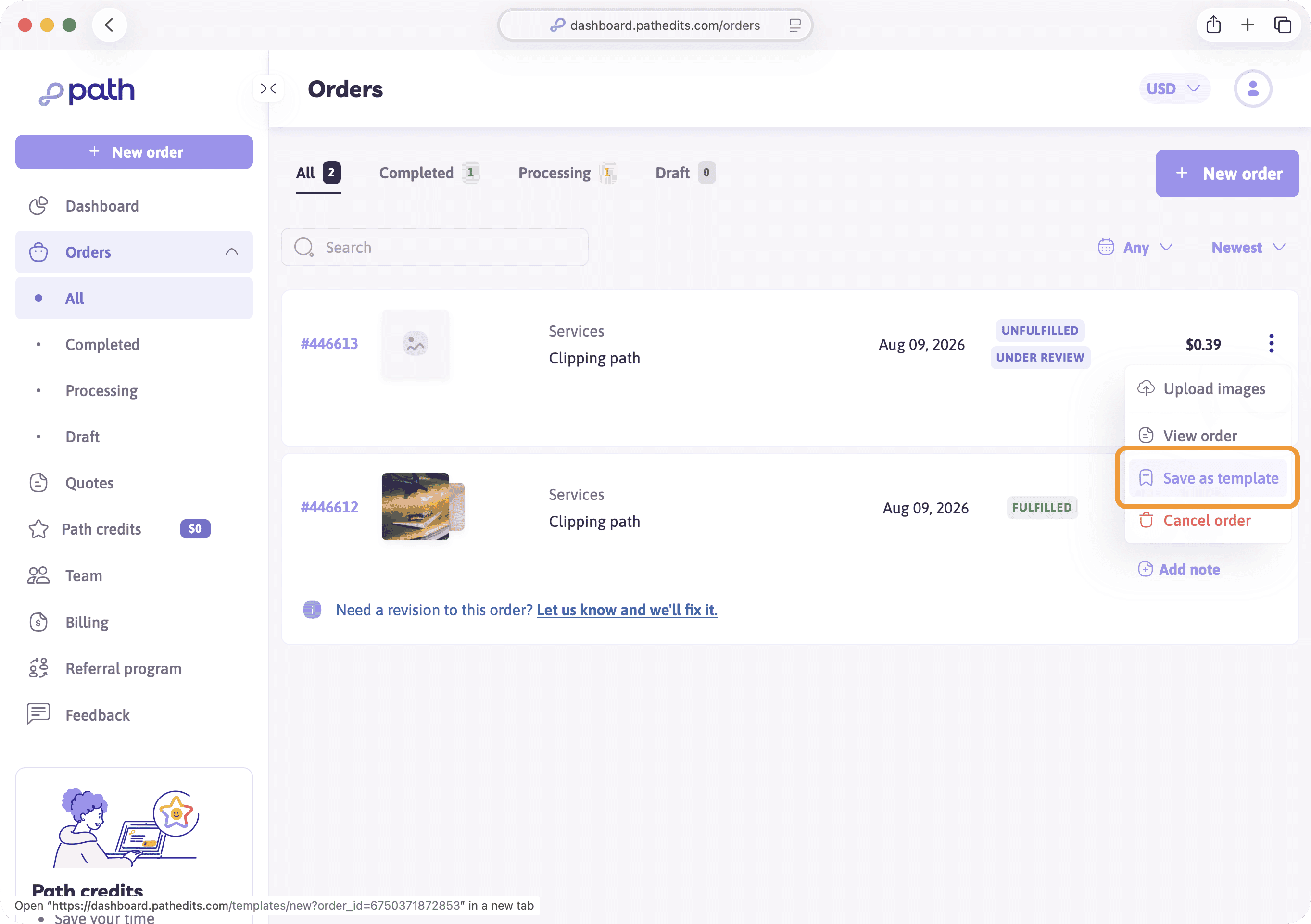
- Open that order (or use the save-as-template path from a similar previous order)
- Save it as a template with a clear name (for example “White background packshots”)
- Find it later under Templates in the sidebar
Templates keep formats and notes consistent across jobs for the same product type or client.
New order from a template
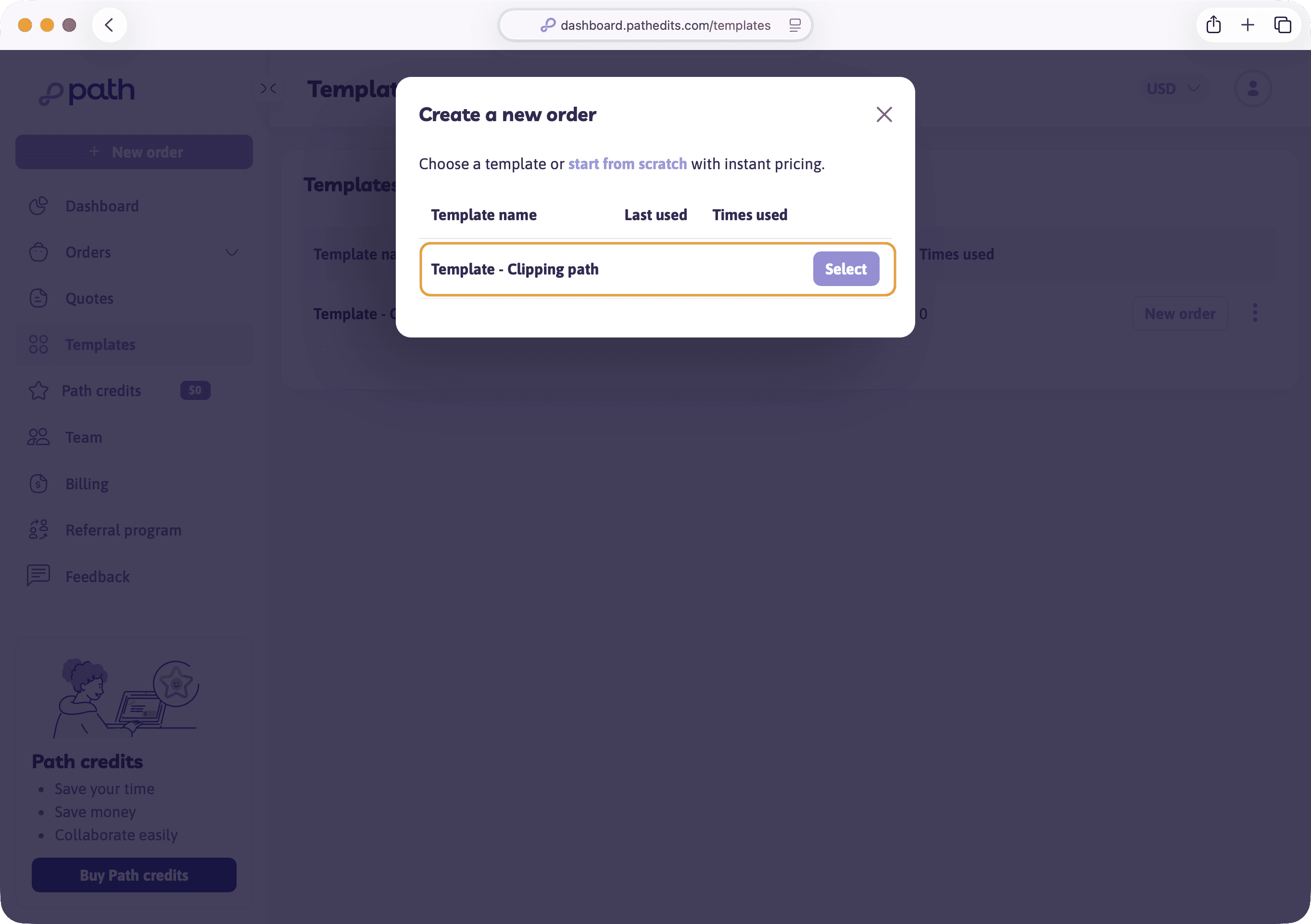
When you click New order and templates exist, you’ll typically choose:
- A template — reuse services and settings, then upload new images
- Start from scratch with instant pricing — when the job is different
Then confirm turnaround and payment as usual.
When not to use a template
If you need different services or something your template doesn’t cover, start from scratch with instant pricing instead. Don’t force a mismatched template; a fresh quote keeps pricing and instructions accurate. Bulk or complex work may need a custom quote on eligible plans — covered in the next lesson.
Try it now
After your first successful order, save it as a template from the order page, then open Templates to confirm it appears.
Next
Next you’ll tidy account settings, invite teammates, and find billing.