


Sign in with your password
- Open Sign in
- Enter your email address and choose Continue
- Enter your password and choose Sign in
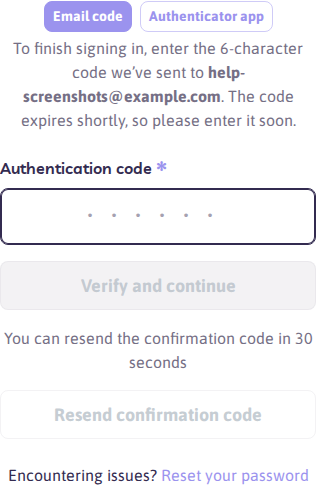
If two-factor authentication is enabled, enter the 6-digit confirmation code from email or your authenticator app, then choose Verify and continue. When both are on, you can switch between Email code and Authenticator app on that screen. See How does two-factor authentication work?.
You’ll go to your personal dashboard to manage orders, place new ones, and update account settings.
Sign in with a passkey
If you’ve added a passkey, enter your email and choose Continue, then Sign in with passkey. That uses Face ID, Touch ID, Windows Hello, or your device’s security key, and it skips the password (and any email or authenticator code when two-factor is on).
See How do I add or manage passkeys?.
Forgot your password or seeing an invalid login error? See How do I reset my Path account password?.
If you don’t have a password yet
If you placed an order before creating an account, Path may email the confirmation code as soon as you enter your email — there is no password step. After you sign in, set a password from My account → Security.